
Insync Explained: How Its Cloud Synchronization Technology Works and Why It Matters

Modern technology has transformed how people create, store, access, and share digital information. Businesses, students, freelancers, and professionals increasingly depend on cloud storage to keep important documents available across different devices. However, managing multiple cloud accounts through separate websites can sometimes make everyday work complicated. This is where Insync becomes useful. Insync is a desktop application that connects cloud storage services with a computer’s local file system, allowing users to manage supported online files through a familiar desktop environment. It supports Google Drive, Microsoft OneDrive, and Dropbox, offering features that make file synchronization more flexible. From selective synchronization to multiple account management, Insync provides practical solutions for people who regularly work with digital documents. Understanding how Insync operates helps explain why cloud synchronization applications have become an important part of modern computing.
Quick Information Table
| Information | Details |
|---|---|
| Technology name | Insync |
| Software category | Cloud synchronization |
| Main purpose | Desktop cloud file management |
| Application type | Desktop software |
| Primary services | Google Drive, OneDrive, Dropbox |
| Operating systems | Windows, macOS, Linux |
| Main functionality | File synchronization |
| Selective synchronization | Available |
| Two-way synchronization | Available |
| One-way synchronization | Available |
| Multiple accounts | Supported |
| External storage support | Available |
| Network drive support | Available |
| File manager integration | Supported |
| Main advantage | Flexible cloud file management |
1. Understanding What Insync Technology Means
Insync is a desktop application developed to make cloud storage easier to manage through a computer. It connects supported online storage accounts with local folders, allowing users to access selected cloud content without constantly opening a browser. The application is particularly useful for people who maintain files across different platforms and want a more organized working environment. Instead of treating cloud documents as completely separate from computer files, Insync creates a connection between the two locations. Users can organize information, select folders, and manage synchronization according to their requirements. It is important to understand that Insync does not provide its own independent cloud storage space. It works with existing cloud services and helps users control how their information moves between online accounts and local devices.
2. How Insync Technology Works
The working process of Insync begins when a user installs the application and connects a supported cloud storage account. After completing the required account authorization, the application identifies the available cloud content and allows users to choose which files or folders they want to synchronize. They can also select a suitable location on their computer for storing synchronized information. Once the configuration is complete, Insync manages file transfers according to the selected synchronization settings. For example, when someone edits a document inside a synchronized folder, the application can transfer the updated version to the connected cloud account. Changes made online can also reach the local computer when two-way synchronization is enabled. This process reduces the need for repeated manual downloads and uploads.
3. The Importance of Cloud Synchronization
Cloud synchronization has become an essential part of modern digital workflows because people frequently work from different locations. A document created on one computer may need to be accessed later from another device or shared with colleagues. Insync helps make this process more convenient by connecting local folders with supported cloud accounts. When synchronization is configured correctly, updated information can become available in connected locations without requiring users to transfer every file manually. This approach can save time, improve organization, and reduce unnecessary administrative work. However, synchronization is not identical to backup storage. Changes or deletions may affect connected copies depending on the selected settings. Therefore, maintaining a separate backup remains important for protecting valuable personal and professional information.
4. Supported Cloud Storage Services
One of Insync’s important capabilities is its support for several popular cloud storage services. These include Google Drive, Microsoft OneDrive, and Dropbox. Each platform serves different users and provides its own storage environment, account permissions, and file management features. Insync brings supported accounts into a desktop-based workflow, making it easier to access selected information without repeatedly switching between different websites. For example, a freelancer might store client documents in Google Drive, workplace files in OneDrive, and project materials in Dropbox. Managing these services through one application can make everyday organization more straightforward. However, Insync does not combine their storage capacities or remove the individual limitations of each provider. Every connected account continues to operate under its original service conditions.
5. Selective Synchronization and Storage Control
Selective synchronization allows users to decide which files and folders should be transferred between cloud storage and their computers. This feature is especially valuable when an online account contains large collections of photographs, videos, documents, and archived projects. Downloading everything may consume unnecessary local storage, particularly on computers with limited disk capacity. Insync offers cloud selective sync and local selective sync, giving users control over the content they want to manage. For instance, someone working on a particular project can choose its essential documents instead of downloading an entire cloud account. This makes file organization more practical and helps users avoid unnecessary transfers. Reviewing folder selections carefully is important because an incorrect configuration may prevent required information from synchronizing.
6. Understanding One-Way and Two-Way Synchronization
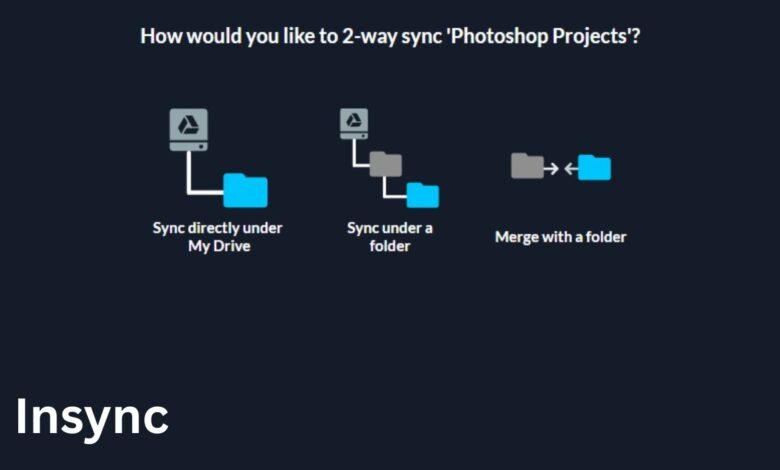
Insync provides one-way and two-way synchronization options for different file management requirements. Two-way synchronization allows changes to move between the computer and cloud storage, helping users maintain updated copies in both locations. This approach is suitable for documents that are regularly edited from different environments. One-way synchronization transfers changes in a selected direction, providing more control over how information moves between connected folders. It can be useful when users want a destination folder to receive updates without treating both locations as equally editable working copies. However, these settings should be selected carefully. Users must understand the direction of synchronization and how deletions or modifications may affect their files before relying on the application for important documents.
7. Compatibility with Different Operating Systems
Compatibility is another important consideration when choosing desktop software. Insync supports Windows, macOS, and Linux, making it accessible to users with different computing preferences. Windows users can access synchronized content through their familiar desktop environment, while Mac users can manage supported cloud accounts without depending entirely on browser-based access. Linux compatibility is particularly useful because people working with Linux systems may want a dedicated application for managing popular cloud services. Insync provides this option through its desktop software. Nevertheless, users should check the official download page for current operating system requirements and compatible versions before installation. Good platform support makes cloud synchronization more accessible to individuals, developers, and professionals using different computer environments.
8. Managing Multiple Cloud Accounts
People often maintain separate cloud accounts for personal documents, educational materials, business activities, and freelance projects. Switching repeatedly between these accounts can create unnecessary complications. Insync supports multiple cloud accounts, helping users manage supported storage services through a more centralized desktop workflow. This makes it easier to separate different projects and locate the correct information when needed. For example, a professional may use Google Drive for personal documents and OneDrive for workplace files. However, users should review Insync’s current licensing requirements because managing additional cloud accounts may involve additional licensing costs, depending on the applicable plan. Organizing accounts with appropriate folder structures and synchronization settings can improve everyday file management and reduce confusion.
9. File Manager Integration and Productivity
One practical advantage of Insync is its ability to connect cloud files with familiar desktop file management workflows. Most computer users already understand how to create folders, rename documents, move files, and organize information through their operating system. Insync helps bring supported cloud content into this environment, reducing the need to learn separate file management methods for every service. This can make routine activities more convenient, especially for people who regularly work with large collections of documents. Instead of repeatedly downloading and uploading information through browser windows, users can manage selected synchronized content through their desktop file manager. Although the exact experience can vary by operating system, this integration can support a more organized and efficient working process.
10. External Drives and Flexible Storage Locations
Insync also supports flexible synchronization locations, including external storage devices and network drives. This capability can benefit users who manage large collections of files and prefer not to store everything on their computer’s internal drive. For example, photographers and video editors may use external drives to organize project materials while keeping selected information connected to their cloud accounts. The application also supports workflows involving USB devices and network-attached storage. These options provide additional flexibility for managing digital information across different storage environments. However, external devices should remain properly connected when their synchronized content is required. Users should also check synchronization status before disconnecting a device or changing folder locations to avoid incomplete transfers and unexpected file management problems.
11. Security and Responsible File Management
Security deserves careful attention whenever an application connects to personal or professional cloud accounts. Insync allows users to manage supported cloud information through an authorized desktop connection, but responsible account protection remains essential. Users should download the application from its official website, install available updates, and protect their cloud accounts with strong passwords. Enabling multi-factor authentication through the relevant cloud provider can provide another layer of account protection. It is also important to review permissions and avoid synchronizing confidential information onto public or shared computers. Users should understand how synchronization works before making changes to important folders. These practices help reduce avoidable risks and encourage safer management of digital information across connected devices.
12. Benefits and Limitations of Insync
Insync offers several practical advantages, including multi-cloud support, selective synchronization, multiple account management, flexible storage locations, and desktop integration. These features can make it useful for people who regularly manage information across different online services. Its support for Windows, macOS, and Linux also provides flexibility for different computer users. However, the application has limitations that should be considered before choosing it. Insync is commercial software, so users should review its current pricing, licensing, and trial conditions. It also requires an understanding of synchronization settings to avoid unwanted file changes. People who only access cloud documents occasionally may find their provider’s standard web interface sufficient. Ultimately, the right choice depends on individual storage needs, working habits, and preferred level of file management control.
13. The Future Importance of Insync Technology
As digital activities continue to expand, cloud storage and synchronization applications are likely to remain important parts of everyday computing. Individuals and organizations increasingly need convenient ways to organize documents, access information, and maintain connected working environments. Insync represents an approach that brings cloud storage services closer to traditional desktop file management. Its existing capabilities demonstrate how users can benefit from selective synchronization, multiple accounts, and flexible storage locations. Future developments across the synchronization software industry may focus on improved security, smoother platform integration, and more advanced storage controls. These possibilities should not be confused with confirmed Insync product announcements. Nevertheless, the growing importance of accessible digital information explains why applications in this category continue to attract attention.
Final Thoughts
Insync technology offers a practical approach to connecting cloud storage with local computer environments. By supporting Google Drive, Microsoft OneDrive, and Dropbox, it helps users manage selected online files through a familiar desktop workflow. Features such as selective synchronization, multiple account management, one-way and two-way syncing, and external storage support provide flexibility for different working requirements. However, users should understand its licensing conditions, account permissions, and synchronization behavior before depending on it for important information. Insync is not an independent cloud storage provider or a complete replacement for backup solutions. Instead, it serves as a useful connection between existing cloud services and desktop file management. For people who regularly work with multiple cloud accounts, understanding its capabilities can help them make better decisions about organizing and managing digital information.
Frequently Asked Questions (FAQs)
1. What is Insync?
Insync is a desktop application designed to connect supported cloud storage services with local computer folders. It helps users synchronize and manage files from Google Drive, Microsoft OneDrive, and Dropbox through a familiar desktop environment.
2. How does Insync work?
Insync works by connecting an authorized cloud account to a computer. Users select the files and folders they want to synchronize and choose suitable settings. The application then manages file transfers according to the selected synchronization method.
3. Does Insync support Linux?
Yes, Insync supports Linux alongside Windows and macOS. It provides Linux users with a desktop-based way to manage supported cloud storage services. Users should check the official website for compatible distributions and installation requirements.
4. Can Insync manage multiple cloud accounts?
Yes, Insync supports multiple cloud accounts and allows users to manage supported services through one desktop application. This can help individuals and professionals organize personal, educational, and workplace documents more conveniently.
5. Is Insync a backup service?
No, Insync is primarily a synchronization application rather than an independent backup service. Changes and deletions can affect connected copies depending on the selected settings. Users should maintain separate backups to protect important documents against accidental loss.